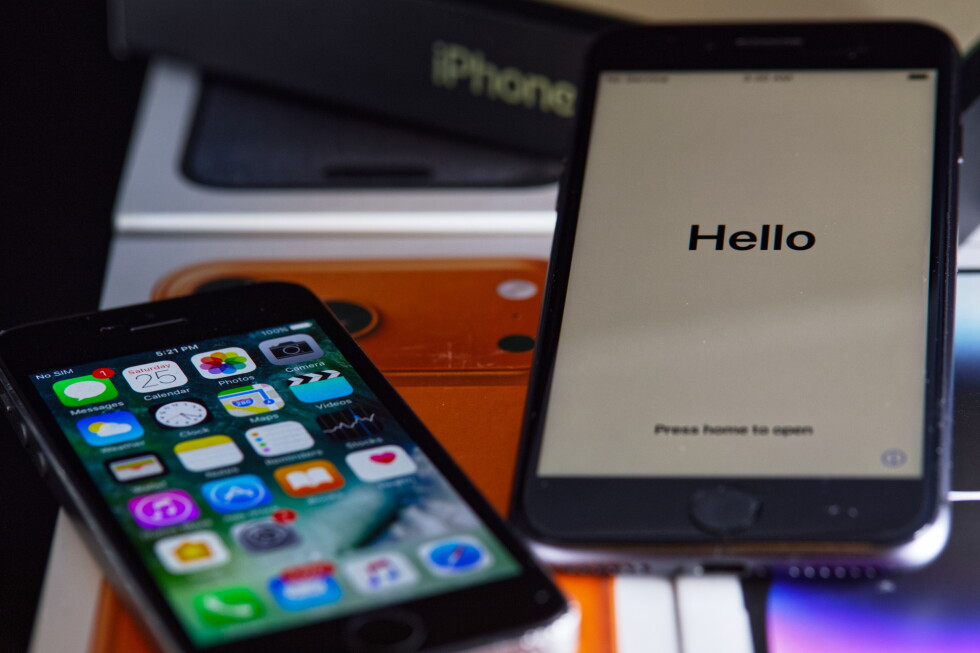
Smartphones play a crucial role in our work and personal lives, and typing has become a daily activity. Apple iPhone owners have access to many little-known keyboard features that can speed up and simplify text input. This was reported by Qazaqyia.kz citing Associated Press.
Quickpath feature
On iPhone, you can enter text not only by tapping but also by sliding your finger across the on-screen keyboard. This feature is called Quickpath. To enable it, go to Settings > General > Keyboard and toggle on "Slide to Type."
To use Quickpath, touch the first letter of the word and, without lifting your finger, slide it to the following letters. For example, to type the word "yellow," tap on the letter Y, then slide your finger to E, and so on. Don't hold your finger down too long on the first letter and lift it from the screen when finished.
If you press Delete right away, the entire word typed this way will be erased, not just a single letter.
Turn the keyboard into a trackpad
If you wrote a sentence and realized you forgot a word, or you want to edit a long paragraph, you need to move the cursor to the desired location. To do this, hold your thumb down on the space bar until the letters disappear, or hold it down inside the text bubble. Now you can move the cursor around the text by sliding your finger across the screen — it works like a trackpad.
Selecting and copying text
There are several ways to select text on iPhone. You can tap twice on a word to highlight it, or three times to highlight a whole paragraph. For more precision, use the trackpad method: while holding your thumb down on the space bar, tap anywhere on the keyboard. Then, by moving your finger, you can select text.
This feature allows you to both select and deselect text in the Notes app or when writing emails. But in chat apps like iMessage or WhatsApp, you cannot deselect if you've highlighted more than you wanted. In that case, use a slightly different method: hold a finger down on the shift key and hold down the space bar.
To copy the highlighted text, you can use the pop-up options that appear onscreen or use gestures: pinch three fingers together to copy. To paste elsewhere, spread three fingers apart. This can also be used with photos.
However, these shortcuts didn't always work smoothly for me when I tried them out on some short snippets of messaging text on my iPhone. They might work better on a device with a bigger screen, like an iPad.
If there is a tech topic you think needs explaining, write to us at [email protected] with your suggestions for future editions of One Tech Tip.